

The best online spreadsheet collaboration tools keep an editable sheet for the team and a separate copy for reviewers. Adobe Acrobat’s Excel to PDF converts XLS and XLSX files online in any browser, keeps tables, rows, and columns, deletes files unless you sign in to save, and lets signed in users share the PDF for comments.
This article is for professionals looking for top online services that turn spreadsheet documents into a format that supports review and sharing.
Online services that transform a spreadsheet for review and sharing fall into four groups: PDF converters such as Adobe Acrobat’s Excel to PDF, iLovePDF, and PDF24, shared sheets such as Google Sheets and Excel for the web, published web pages, and web apps. Choose by what reviewers must do. A PDF fixes the layout for reading, a shared sheet lets people comment on the data, a web page publishes a view, and a web app lets people enter inputs. Each is described by its own help pages.
Online spreadsheet review platforms that support comments and roles include Google Sheets, Excel for the web, ONLYOFFICE, Smartsheet, and Airtable, and Adobe Acrobat’s Excel to PDF covers reviewers who only read. What separates them is the review role: some let people comment without editing, some add a reviewer role that suggests changes, and some only share a read only view. Match the role to the task, so reviewers can question numbers without changing them. Each platform’s review features come from its own help pages.
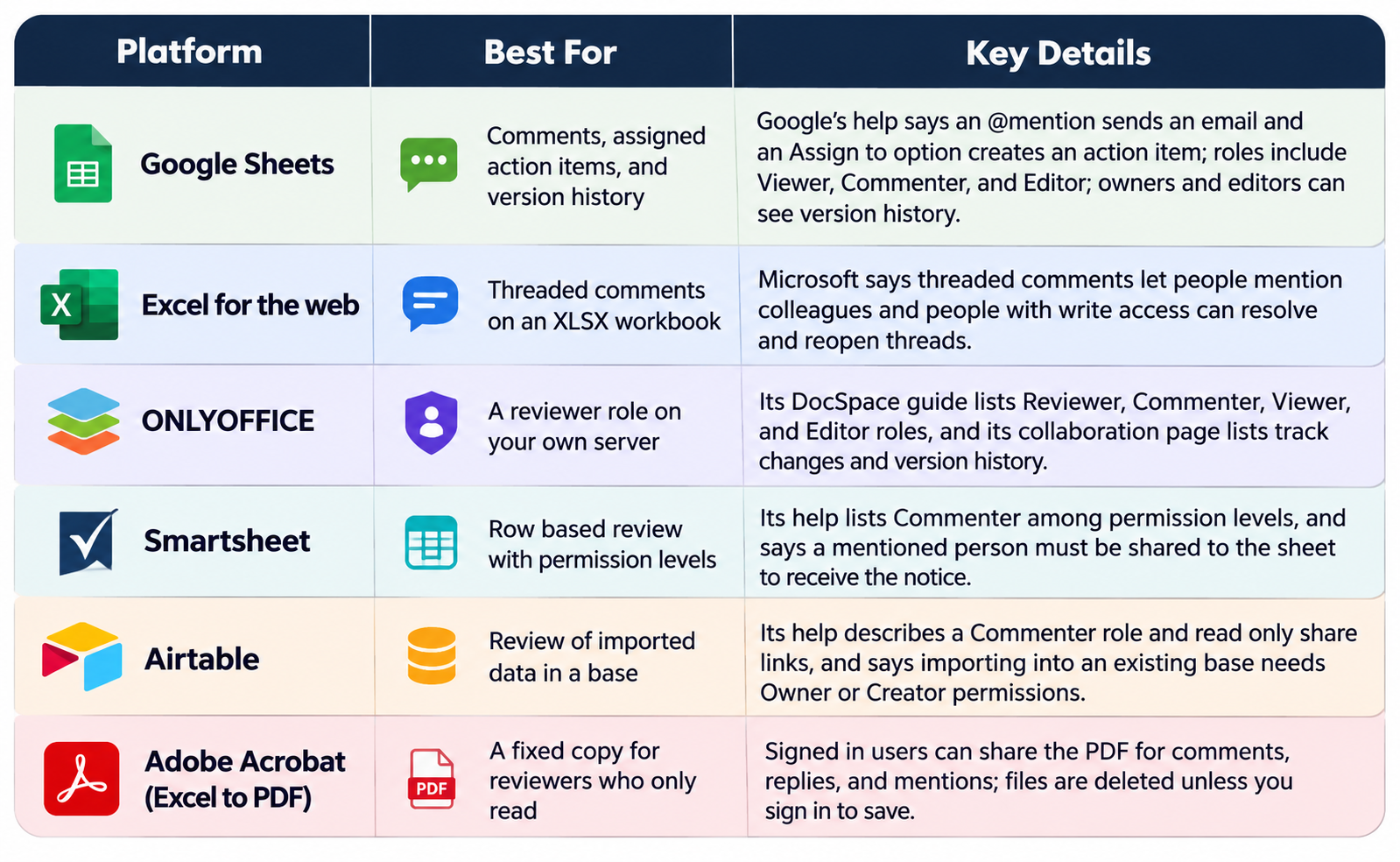
Reviewer versus commenter: ONLYOFFICE’s DocSpace guide describes a Reviewer as someone who can suggest changes and a Commenter as someone who can leave comments.
You can convert a spreadsheet to a web format by saving it as a web page, publishing it from an online sheet, or embedding a live workbook. Microsoft says Excel can save a workbook or part of one as a static web page in .htm or .html, with an option to republish each time you save. Google’s help says you can publish an entire spreadsheet or individual sheets, then send a new URL or embed it in a site. Published pages are for reading, so keep an editable master.
No. Google’s help says publishing a file makes it available for a large audience and lets you send a new URL or embed it in a site, so treat it as public to anyone with the link. Check the published content settings and untick any tab you do not want shown. For private review, share the sheet with named people and a Commenter role instead.
Not as an editable workbook. Microsoft describes the Excel web page option as static, and a guide says fewer Excel features are maintained when you save as a web page. Readers see results, not working formulas. Keep the XLSX as your master and publish the web page for reading, or use a web app platform if visitors must enter values.
Use a PDF when reviewers must comment on a fixed layout. Adobe’s page says signed in users can share the PDF for comments, replies, and mentions, and a PDF keeps the page breaks you set. Use a web page when many readers only need to look at current data. For tasks that need edits, use a shared sheet with roles.
A web server that can serve the page and its supporting folder. Microsoft says Excel creates a supporting folder of files when you save as .htm or .html, and a guide says you can host the saved page on any web server. Upload the page and the folder together, then open the live address and check that the tables and images appear.
The best online spreadsheet collaboration tools combine an editable shared sheet for the team with a PDF or published page for readers who only review.